Netpicker: Compare Configurations Between Devices
Introduction to Netpicker and Its Capabilities
When troubleshooting a connectivity issue on a pair of redundant core routers, the last thing you want to do is manually compare their configurations line by line. A single misconfigured access list or prefix list can cause inconsistent behavior, but finding the discrepancy can be like searching for a needle in a haystack.
Manually comparing the two show running-config outputs is time-consuming and prone to error. You could spend hours scrolling through thousands of lines of text, trying to spot a single misplaced deny statement or a missing network in a prefix list.
This is where Netpicker’s configuration comparison feature simplifies the task. Netpicker allows you to select any two devices and view their running configurations in a side-by-side, color-coded “diff” view. This visual comparison immediately highlights every addition, deletion, and modification, turning a difficult manual task into a quick and accurate check.
Common use cases for this feature include:
- Verifying Policy Consistency: Comparing access lists (ACLs) or prefix lists between two routers to ensure routing policies are identical.
- Troubleshooting: Comparing a working device with a non-working one to quickly identify configuration discrepancies that could be the root cause of a problem.
- Auditing Redundancy: Auditing the configurations between a primary and a backup device to prevent unexpected issues during a failover.
- Validating Deployments: Verifying that a newly deployed device has been configured identically to a “golden template” device.
To start comparing configurations with Netpicker, follow these steps:
- Log in to your Netpicker account.
- Navigate to the Backups tab.
- Select the two devices you want to compare from the device list.
- Click the Compare button.
You will be presented with a side-by-side comparison of the two devices’ running configurations, highlighting any differences.
In Netpicker’s comparison view, the output would look like this:
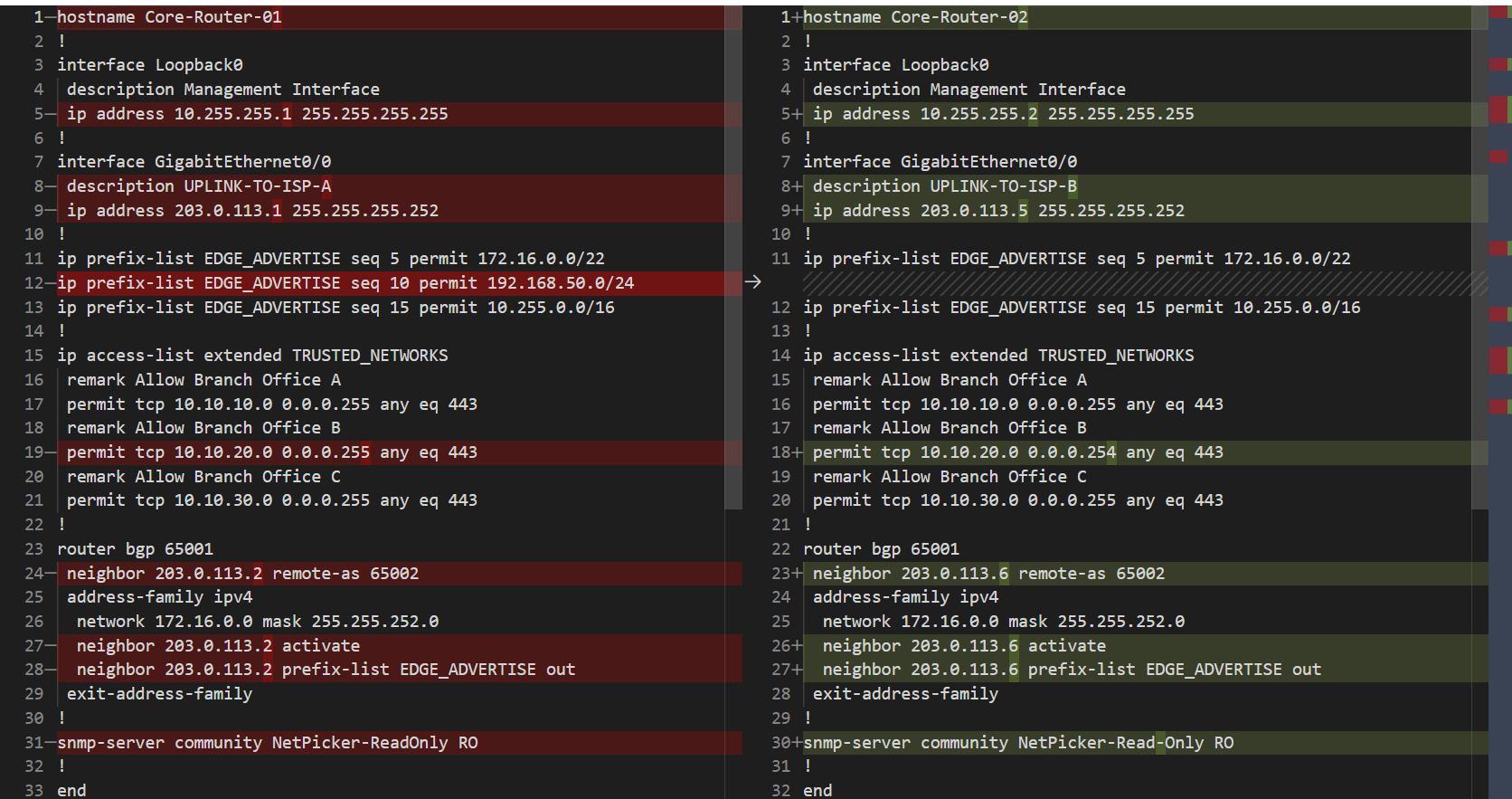
This clear and concise output makes it easy to identify configuration differences between devices. Try Netpicker’s configuration comparison feature today and streamline your troubleshooting process.